EntityReach/Company group explorer
Company group explorerSee the companies
See the companies
behind your customer.
Explore the full available company group behind your customer. Move from parents and intermediate holdings to operating companies, markets and expansion questions your account team can act on.
Explore a customer’s group483company & branch records
65countries
8group levels
482direct-parent links
Based on the supplied Alphabet workbook. This is a sample, including company and branch records. Run a current search before making a commercial decision.
Read the video transcript
One customer account can connect you to hundreds of related businesses. This Alphabet sample contains four hundred and eighty-three records across sixty-five countries. Follow the actual parent path: from Google, through Google International, to a local operating company. Then explore another branch: from Alphabet to Verily, and on to Ireland and the United Kingdom. Review the companies that fit what you sell. Keep the relevant accounts, rule out the rest, and save your shortlist. EntityReach. Find your next customer within the group.
Try it with your customer
BUYER REVIEW BRIEF
Turn a group map into a reviewable account decision.
Use this browser-only checklist before adding a related company to an account plan. Your choices are not sent or stored.
0 of 4 checks completeNext: Legal company confirmed.
Work the group as a connected account.
The tree explains the connection. The list helps you work.
Select a company to see its relationship to your starting account. Direct parents, subsidiaries and sister companies have different commercial implications. The accompanying list gives you a practical way to sort and review larger groups.
- Shared country and review-status filters across tree and list
- Activity and employee filters when those fields are available
- Expandable branches for large groups
- Entities without a profile ID remain visible
Keep your commercial context with the data.
Mark entities as existing customers, in discussion, shortlisted, to review or not relevant. Add notes on contract coverage and the next conversation you want to have. These are your team’s judgements; EntityReach does not infer that an unlabelled entity is a new customer.
A useful starting point, with visible limits.
The returned tree reflects the relationships available from our data provider. Some links may be modelled. View the source classification and retrieval time, and distinguish a lack of returned relationships from confirmed independence.
Use cases
Put the group view to work.
Key account review
The customer name is only one part of the account.
Start with the entity on your agreement. Explore its wider group and mark which companies your team already serves before discussing expansion.
Next actionAsk the account owner which related companies are covered by the current agreement.
Use each view to answer a different account question.
| Your task | Use the spider or tree | Use the company table |
|---|---|---|
| Understand the relationship | Follow the parent and intermediate entities. | Compare relationship labels across returned companies. |
| Review a territory | See where the selected business sits in the group. | Filter country, activity and employee fields when available. |
| Build the shortlist | Select a connected company for closer review. | Work through entities using customer, discussion and review labels. |
| Prepare the next meeting | Explain the route from your customer to a candidate. | Export the filtered view and prepare a printable saved account brief. |
Account context
A connection explains where to look. Fit decides what makes the shortlist.
A corporate tree gives you the relationship path. Your account knowledge determines whether the company is already served, covered by an agreement or worth a new conversation. Keep both in the same review so the next owner understands why an entity was selected.
Follow a complete account reviewA full structure separates legal companies from locations.
The supplied Alphabet sample contains 483 records: 224 single-location records, 180 branches and 79 head-office nodes. It is not a live coverage claim.
Match the company. Map the account.
- 01
Match the customer
Search by legal name, website or registration number. Confirm the country and identity before opening the group.
- 02
Review connected businesses
Move between tree and table. Focus on your territory and the operating activities relevant to your offer.
- 03
Save a next action
Keep company notes, a responsible owner label and a specific follow-up with your shortlisted entity.
Open the company group explorer reference diagram
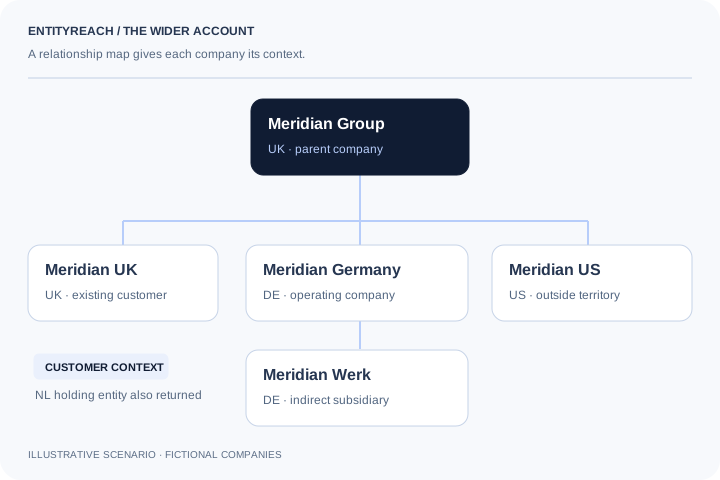 View full-size diagram
 Frequently asked questions
About company group explorer.
What is a company group structure?
A company group structure describes relationships between legal entities, such as a parent and its subsidiaries. For account expansion, it helps you distinguish the company you already serve from connected businesses that need their own coverage and fit review.
How can I explore a company’s corporate group?
Search for the company by name, website or registration number, confirm the matching legal entity and open the returned group. Use the tree to trace relationships and the table to review companies against your territory and account criteria.
How does company group mapping support account expansion?
It reveals related entities that may be missing from the current account conversation. Add your customer and agreement knowledge before deciding which businesses warrant research; a group connection alone does not establish sales potential.
Can I see subsidiaries and sister companies together?
The group explorer can show available parent, subsidiary and sister-company relationships in one returned structure. Which entities appear depends on the relationships available for the selected company.
Can I search using a company website?
Yes. A website can help retrieve possible company matches. Confirm the legal name, country and registration information because one website may represent several companies or a group brand.
Can I filter a corporate group by country?
Yes. Country and review-status filters help narrow the returned group. Activity and employee filters can also be used when those fields are available. Missing data should remain part of your review.
Is the highest company in the tree always the ultimate parent?
No. It is the highest entity in the returned structure. Incomplete source coverage or missing links may prevent it from being a verified global ultimate parent. Inspect the relationship evidence before making that claim.
Can I save account mapping results?
Signed-in users can save groups and company plans. Keep review labels, notes, an owner label and the next action with the account so a later review can build on the earlier work.
Can I export a company group?
The current filtered company view can be exported as CSV. Saved shortlists can also be used in a printable account brief. Review any visible result limits before interpreting the export as the complete group.
How complete is the company group data?
Coverage varies by jurisdiction, source and relationship availability. Some links may be modelled, some entities may lack a detailed profile and large results are bounded. Validate familiar accounts and check the displayed limits rather than assuming complete worldwide coverage.
Explore your customer’s wider group.
Start with a company you serve. Find where your offer could fit next.